logo elektroda
logo elektroda
X
logo elektroda
REKLAMA
REKLAMA
Adblock/uBlockOrigin/AdGuard mogą powodować znikanie niektórych postów z powodu nowej reguły.

Kamera Axis Q1615 MKII Amber led miga brak komunikacji.

iquest 04 Mar 2019 08:18 882 7
REKLAMA
  • #1 17818580
    iquest
    Poziom 17  
    Posty: 287
    Ocena: 21
    Witam

    Nowa kamera Axis Q1615 MKII wyjęta z pudełka. Poddana procesowi upgrade firmware przez przeglądarkę IE. Po zakończeniu procesu i komunikacie o poprawnym przebiegu kamera miała się zrestartować i uruchomić. Kamera wyłączyła się ale ponowne uruchomienie nie nastąpiło. Dioda Power LED ( amber led ) miga co 7 sek kolorem pomarańczowym.
    Wszelkie próby procedury przywracania ustawień fabrycznych opisanych w instrukcji Axis nie przynoszą efektu.
    Kamera nie jest widoczna w sieci brak jakiejkolwiek komunikacji sieciowej.
    Plik firmware pobrany z oficjalnej strony Axis do posiadanej kamery.
    Czy jest jakaś tajemna procedura odzyskania komunikacji z kamera?
    Dziękuję.


    .
  • REKLAMA
  • #2 17819493
    adamjur1
    Poziom 42  
    Posty: 7050
    Pomógł: 770
    Ocena: 999
    A nasz chociaż jej ip ? pinguje się ? jak nie to może poszła w jakiś swój świat adresów, ja w takim przypadku odpalam ip skaner i macam po różnych grupach adresów.
    Pozdr. J.
  • REKLAMA
  • #3 17820317
    gradek83
    Poziom 43  
    Posty: 9089
    Pomógł: 928
    Ocena: 2089
    iquest napisał:
    Plik firmware pobrany z oficjalnej strony Axis do posiadanej kamery.

    Wgrywałeś najnowsze firmware wersja 9.10.1 ?

    Robiłeś wszystko zgodnie z instrukcją aktualizacji ?
    https://www.axis.com/pl-pl/support/tecnical-notes/how-to-upgrade
    Spoiler:
    UPGRADE INSTRUCTIONS
    ====================
    
    The firmware can be upgraded using Axis Camera Management, HTTP or FTP.
    
    NOTE: If in an A1001 controller cluster make sure to upgrade all controllers. 
    Either all at a time using ACM or straight after each other using web interface 
    or FTP. The entire cluster always needs to be on the same Firmware!
    
    
    Axis Device Manager (formerly Axis Camera Management) 
    =====================================================
    
    1.  Download and install Axis Device Manager on your computer.
    
    2.  Download the upgrade file to a directory that is accessible from your
        local computer.
    
    3.  Run Axis Device Manager. All the Axis devices found on the local
        subnet (or on subnets with routers that support multicasting) are shown
        in the list.
    
    4.  Select the devices that you want to upgrade with new firmware (you can
        even select different models) and click the Upgrade icon.
        Note: A dialog will open if some of the devices can not be configured,
        e.g. if the devices are not accessible.
    
    5.  The Upgrade Firmware dialog shows a list of camera models and, if you
        expand the list, you can see the current firmware version installed in
        each device.
    
    6.  Click to locate the new firmware versions stored on your hard drive. This
        needs to be done for each Axis network camera or video server model.
    
    7.  Click OK to start upgrading the devices.
    
    For more information see help in Axis Device Manager.
    
    
    HTTP
    ====
    
    NOTE: The procedure to update firmware differs slighty depending on the
          version of the installed web interface (before and after 7.10.1).
          For Q1659 the new web interface was introduced in 6.55.1.
    
    1.  Download the upgrade file to a directory that is accessible from your
        local computer.
    
    2.  Open the product's start page (e.g. http://192.168.0.90) in a web browser.
    
    
    Upgrade instructions when using the old web interface:
    
    3.1  Click the Setup link and log in as "root" (or any other user with
         Administrator privileges). You must be logged in as an Administrator to
         upgrade the unit.
    
    4.1  Click System Options in the menu to the left.
    
    5.1  Click Maintenance.
    
    6.1  Click the Browse button in the Upgrade Server section.
    
    
    Upgrade instructions when using the new web interface:
    
    3.2  Log in as "root" (or any other user with Administrator privileges).
    
    4.2  Click Settings to the right
    
    5.2  Click System-tab
    
    6.2  Click Maintenance
    
    
    Instructions for both versions of the web interface:
    
    7.  Select the upgrade file you downloaded (and maybe decompressed) from our
        site. This file is typically named after the product and Firmware version.
    
    8.  Click the Open button.
    
    9.  Click the Upgrade button in the Upgrade Server section.
    
    10. Wait for the flash load to complete, which may take 1-10 minutes. The
        upgrade procedure is in four steps:
        Step 1, Shut down:
          Running applications are shut down and active connections are terminated.
        Step 2, Uploading firmware:
          The old firmware will be erased and the new firmware will be saved.
          During this step, the Power LED will blink green/amber. After a while
          the progress of the upgrade will be displayed in the Web browser.
        Step 3, Reboot:
          The system restarts automatically.
        Step 4, Reconfiguration:
          The new firmware settings are configured to match the previous settings.
          The Status LED will be amber during this step.
    
    11. After the upgrade has completed, the unit will automatically initiate the
        system, during which the Status LED blinks amber. When initiation is
        complete and the system is ready for use, the Status LED will be green.
    
    
    FTP
    ===
    
    NOTE1: Starting with firmware version 7.30.1 and onwards the FTP-server is 
    disabled by default. In order to use the instructions below it first needs 
    to be enabled via the web interface:
    
    Settings->System->PlainConfig->Network->NetworkFTP
    
    NOTE2: This is not applicable for the AXIS Companion Line cameras
    
    1.  You must be at the command prompt and in the directory that contains the
        upgrade file.
        Example: C:\Axis\Product\Firmware
    
    2.  From the command prompt, open an FTP connection to the unit you wish to
        upgrade. (Do not use a Windows-based FTP-program to do this, use only
        command line FTP programs!)
    
    3.  Log in as root. You must be logged in as the root user to upgrade the unit.
    
    4.  Change to binary transfer mode by typing "bin" and press enter.
    
    5.  Type "hash" and press enter. (This will allow you to see how the upgrade
        progresses)
    
    6.  Type the command "put XXX.bin flash" where XXX.bin is the name of the
        upgrade file you downloaded (and maybe decompressed) from our site. This
        file is typically named after the product and Firmware version.
    
    7.  Wait for the flash load to complete, which may take 1-10 minutes. The
        upgrade procedure is in four steps:
        Step 1, Shut down:
          Running applications are shut down and active connections are terminated.
        Step 2, Uploading firmware:
          The old firmware will be erased and the new firmware will be saved.
          During this step, the Power LED will blink green/amber. After a while
          the progress of the upgrade will be displayed in the command prompt.
        Step 3, Reboot:
          The FTP session terminates and the system restarts automatically.
        Step 4, Reconfiguration:
          The new firmware settings are configured to match the previous settings.
          The Status LED will be amber during this step.
    
    8.  After the upgrade has completed, the unit will automatically initiate the
        system, during which the Status LED blinks amber. When initiation is
        complete and the system is ready for use, the Status LED will be green.


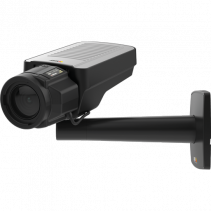
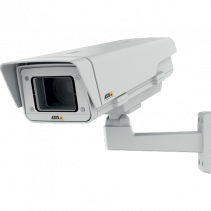
    Dla jasności zapytam masz tą czarna czy białą wersję?

    AXIS Q1615-E Mk II
    Kamera Axis Q1615 MKII Amber led miga brak komunikacji.

    AXIS Q1615 Mk II
    Kamera Axis Q1615 MKII Amber led miga brak komunikacji.

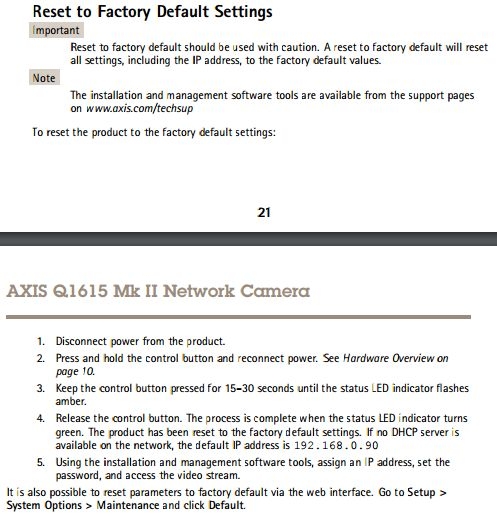
    Próbowałeś przywracać ustawienia domyślne zgodnie z instrukcją ?

    Spoiler:
    Reset to Factory Default Settings
    Important
    Reset to factory default should be used with caution. A reset to factory default will reset
    all settings, including the IP address, to the factory default values.
    Note
    The installation and management software tools are available from the support pages
    on www.axis.com/techsup
    To reset the product to the factory default settings:
    21
    AXIS Q1615 Mk II Network Camera
    1. Disconnect power from the product.
    2. Press and hold the control button and reconnect power. See Hardware Overview on
    page 10.
    3. Keep the control button pressed for 15–30 seconds until the status LED indicator flashes
    amber.
    4. Release the control button. The process is complete when the status LED indicator turns
    green. The product has been reset to the factory default settings. If no DHCP server is
    available on the network, the default IP address is 192.168.0.90
    5. Using the installation and management software tools, assign an IP address, set the
    password, and access the video stream.
    It is also possible to reset parameters to factory default via the web interface. Go to Setup >System Options > Maintenance and click Default.

    Kamera Axis Q1615 MKII Amber led miga brak komunikacji.

    Sprawdź czy w AXIS Camera Management wykrywana jest kamera. Ewentualnie w AXIS Device Manager
  • REKLAMA
  • #4 17820852
    iquest
    Poziom 17  
    Posty: 287
    Ocena: 21
    Mam czarną wersje tej kamery. Oryginalny firmware był 6.25.2 zaktualizowany do najnowszej wersji 9.10.1. Aktualizacja przebiegła poprawnie zakończona komunikatem w oknie dialogowym. Zgodnie z procedurą miał nastąpić restart i tak się stało jednak kamera nie uruchomiła się i cały czas led power miga co 7 sek na pomarańczowo.
    Brak komunikacji, brak IP, brak FTP itp.
    Wykonane wszelkie procedury wskazane przez producenta z resetem i przywracaniem ustawień fabrycznych bez rezultatu.
    Jedno co udaje się wymusić to przypisanie adresu IP do tablicy ARP . Po tej operacji Advanced IP Scaner wykrywa ja po skanowaniu ale bez możliwości komunikacji ( czyta pewnie tablice ARP ).
    Wszelkie programy firmy Axis i pozostałych firm nie wykrywa kamery pod żadnym adresem IP.
    Czy firma Axis pozostawiła sobie furtkę w postaci aktualizacji lub reanimacji z karty SD w kamerze ?
  • #5 17821050
    gradek83
    Poziom 43  
    Posty: 9089
    Pomógł: 928
    Ocena: 2089
    iquest napisał:
    Oryginalny firmware był 6.25.2 zaktualizowany do najnowszej wersji 9.10.1

    I tu może być problem a mianowicie zapewne powinieneś stopniowo aktualizować czyli mając wersję:
    6.25.2 ---> 6.25.2.8 i dopiero na
    7.35.1 ---> 7.40.1 i wtedy
    8.10.1 --> 8.50.1 i na koniec dopiero
    9.10.1

    Tak przynajmniej ja to widzę a czy faktycznie tak powinno się robić w tym przypadku nie wiem. Są to zazwyczaj aktualizacje które może nie koniecznie czyszczą całość poprzedniego oprogramowania sprzętowego a jedynie je aktualizują tak czy siak jest jak widać z tym problem.
    W załączniku masz program może przez niego uda ci się wgrać na początek to firmware źródłowe 6.25.2 i dopiero tak jak pisałem stopniowo aktualizować etapami.

    iquest napisał:
    Jedno co udaje się wymusić to przypisanie adresu IP do tablicy ARP . Po tej operacji Advanced IP Scaner wykrywa ja po skanowaniu ale bez możliwości komunikacji ( czyta pewnie tablice ARP ).

    cmd arp -a

    Kamera domyślnie ma ip 192.168.0.90
    login: root
    hasło: pass

    Jak to nic nie da to jak kamera nowa to odeślij na gwarancji bo gmerał w niej raczej nie będziesz.

    iquest napisał:
    Zgodnie z procedurą miał nastąpić restart i tak się stało jednak kamera nie uruchomiła się i cały czas led power miga co 7 sek na pomarańczowo.

    A może ona najpierw kopiuje to firmware do pamięci i po ponownym uruchomieniu trzeba czekać te 10 min z tego co piszą w instrukcji.
    Załączniki:
    • tftp2.zip (11.08 KB) Musisz być zalogowany, aby pobrać ten załącznik.
  • #6 17822279
    iquest
    Poziom 17  
    Posty: 287
    Ocena: 21
    Mam 12 takich kamer na obiekcie i były aktualizowane z ver 6.25 do 8.10 działają bezproblemowo, więc kolejność chyba nie miała znaczenia. Oczywiście masz rację, że firmware powinno się po kolei instalować. Jedna zapasowa sztuka została potraktowana jak opisuję w poście. Po nie udanych próbach pozostaje tylko serwis Axis. Może nowy firmware zawierał jakiś bug ciężko powiedzieć, a na pewno się nie dowiemy.
  • REKLAMA
  • Pomocny post
    #7 17822442
    gradek83
    Poziom 43  
    Posty: 9089
    Pomógł: 928
    Ocena: 2089
    iquest napisał:
    do 8.10
    iquest napisał:
    Może nowy firmware zawierał jakiś bug ciężko powiedzieć, a na pewno się nie dowiemy.

    Nie będę cię namawiał abyś jedną z tych 12 kamer z firmware 8.10 spróbował uaktualnić do 9.10.1. Jeśli kamery są na gwarancji a ta była zapasowa to oddaj niech ci to naprawią. Jeśli nie miał bys takiej możliwości to zapewne zgranie wsadu z dobrej kamery i wgranie do uszkodzonej mogło by ja postawić ale to już w tym przypadku odpada bo stracił byś gwarancje i musiał byś programator kupić. Nie wiem jak ta kamera wygląda od środka zazwyczaj jest tam możliwość podpięcia się pod UART i zawsze można sprawdzić na konsoli co się tam dzieje przy starcie. Ale szybciej chyba jednak serwis to załatwi. Powodzenia.
  • #8 17871169
    iquest
    Poziom 17  
    Posty: 287
    Ocena: 21
    Witam

    Kamera oddana do serwisu firmowego. Brak informacji technicznej jaka była przyczyna usterki. Firma przysłała fabrycznie nowy egzemplarz tej samej kamery. Dziękuję wszystkim za pomoc i zainteresowanie tematem.

Podsumowanie tematu

✨ Użytkownik zgłosił problem z nową kamerą Axis Q1615 MKII, która po aktualizacji firmware do wersji 9.10.1 nie uruchomiła się prawidłowo, a dioda Power LED miga na pomarańczowo co 7 sekund. Pomimo prób przywrócenia ustawień fabrycznych i skanowania IP, kamera nie była widoczna w sieci. Użytkownicy sugerowali, aby sprawdzić, czy kamera odpowiada na ping, oraz zalecali stopniowe aktualizacje firmware. Ostatecznie, po nieudanych próbach, kamera została oddana do serwisu, który wymienił ją na nowy egzemplarz.
Wygenerowane przez model językowy.
REKLAMA