Wersja 64 bit ale można pobrać Windows ISO Downloader.exe 6.04
https://www.heidoc.net/php/Windows%20ISO%20Downloader.exe i zrobić sobie płytkę lub usb.
Dodano po 1 [minuty]: ale to do naprawy windowsa może się przydać tylko pliku skopiujesz mając dystrybucje live cd lub linuksa jakiegoś
Dodano po 2 [minuty]: można też sprubować tego:
You can try the following methods:
Method 1:
Use Startup Repair to try to repair any startup issues with your computer
Startup Repair will try to repair any startup issues in Windows 7. To run the Startup Repair tool, follow these steps:
a) Restart your computer and start pressing the F8 key on your keyboard. You need to press F8 before the Windows logo appears. If the Windows logo appears, you need to try again by waiting until the Windows logon prompt appears, and then shutting down and restarting your computer. Note: On a computer that is configured for booting to multiple operating systems, you can press the F8 key when the Boot Menu appears
b) Use the arrow keys to choose Repair your Computer in the Advanced Boot Options and then press ENTER. If prompted, select the Windows 7 installation to be repaired, and then click Next
c) Select the Language and a keyboard input method and click Next
d) Select a User name and type your Password and click OK
e) Under System Recovery Options, click Startup Repair. Note: If the repair process detects a problem when it starts Windows 7, it will run Startup Repair to automatically fix the problems. Allow this process to complete. Startup Repair might prompt you to make choices as it tries to fix the problem, and if necessary, it might restart your computer as it makes repairs.
f) On the Startup Repair window click Finish
g) Restart your computer if prompted
Method 2:
Try the steps below:
Step 1
a) Try to uninstall the update by running DISM command from Windows Recovery Environment (WinRE) & check if you are able to boot to the desktop normally. Follow the steps from this link to boot into Windows Recovery Environment. For more information, follow the section ‘To open the System Recovery Options menu on your computer’
b) You will need to know the date and time that the update was installed for this procedure.
c) From the command prompt run the following command: "DISM.exe /Image:C:\ /get-packages"
This will produce a list of installed updates and packages. It should look like this:
package Identity: package_for_KB976932~31bf3856ad364e35~amd64~~6.1.1.1
State: Installed
Release Type: Service Pack
Installed Time: 2/23/2010 10:24PM
d) Then run: DISM.exe /Image:C:\ /remove-package /packagename:package_for_KB976932~31bf3856ad364e35~amd64~~6.1.1.1
e) Then reboot your PC.
Step 2
Thereafter, try installing Service Pack 1. However, before you proceed with the installation of the update. Please follow these links.
Steps to follow before you install Windows 7 Service Pack 1 from the Microsoft Download Center
Learn how to install Windows 7 Service Pack 1 (SP1)
Method 3:
Try the follow these steps and check if it helps.
a) Try to revert the update installation by running DISM command from Windows Recovery Environment (WinRE) & check if you are able to boot to the desktop normally. Follow the steps from this link to boot into Windows Recovery Environment. For more information, follow the section ‘To open the System Recovery Options menu on your computer’
b) You will need to know the date and time that the update was installed for this procedure.
c) From the command prompt run the following command: "DISM /Image:C:\ /Cleanup-Image /RevertPendingActions"
d) Then reboot your PC.






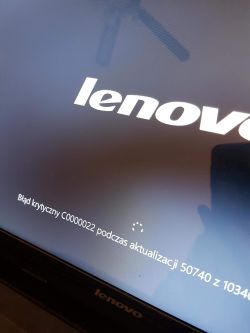
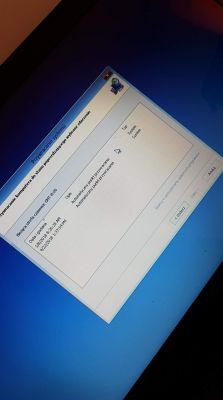
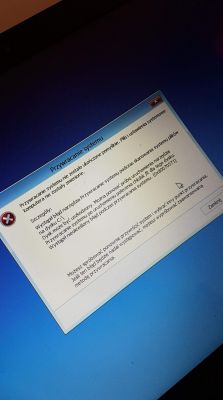
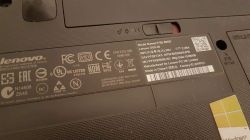 .
.
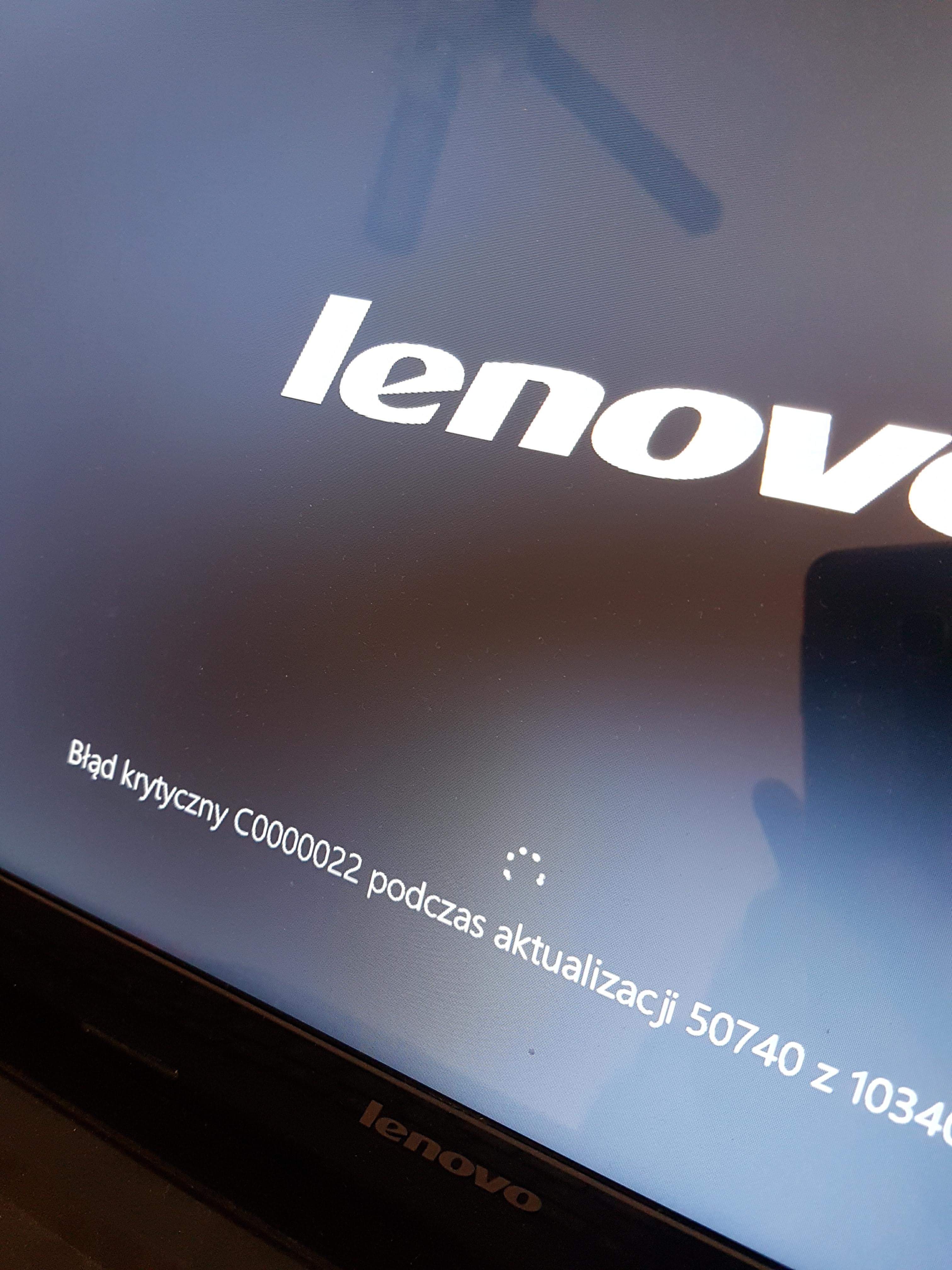
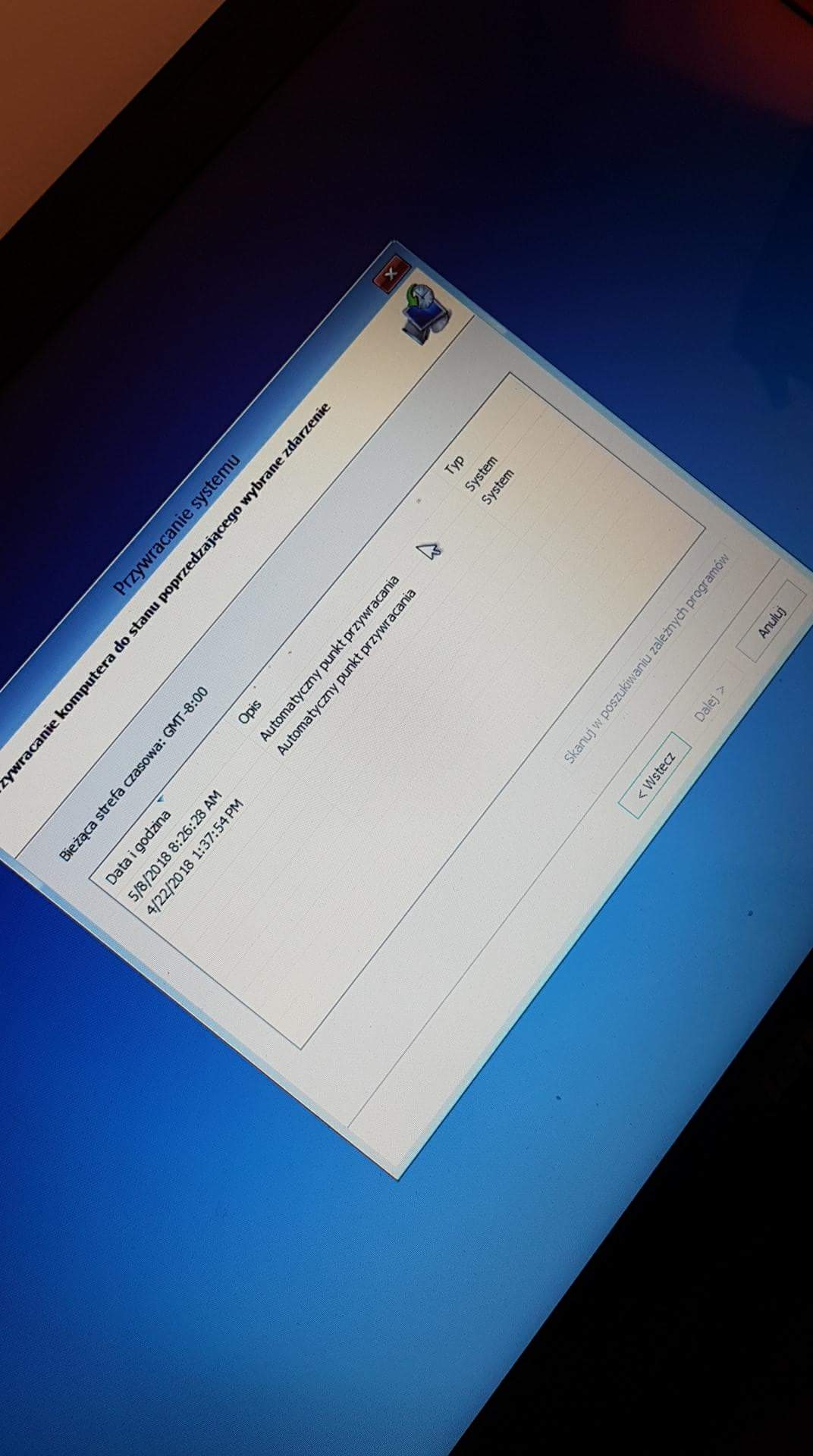
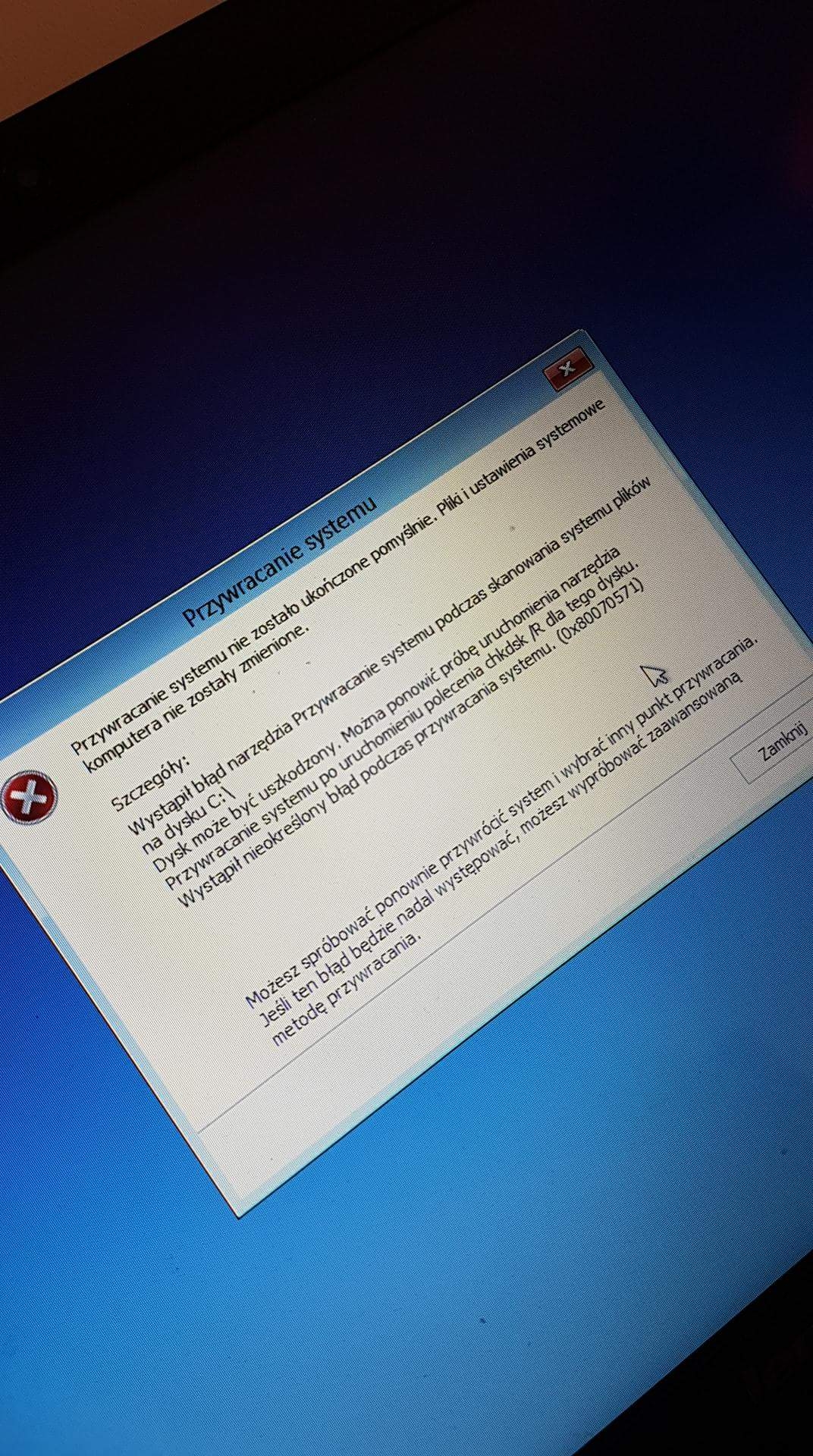
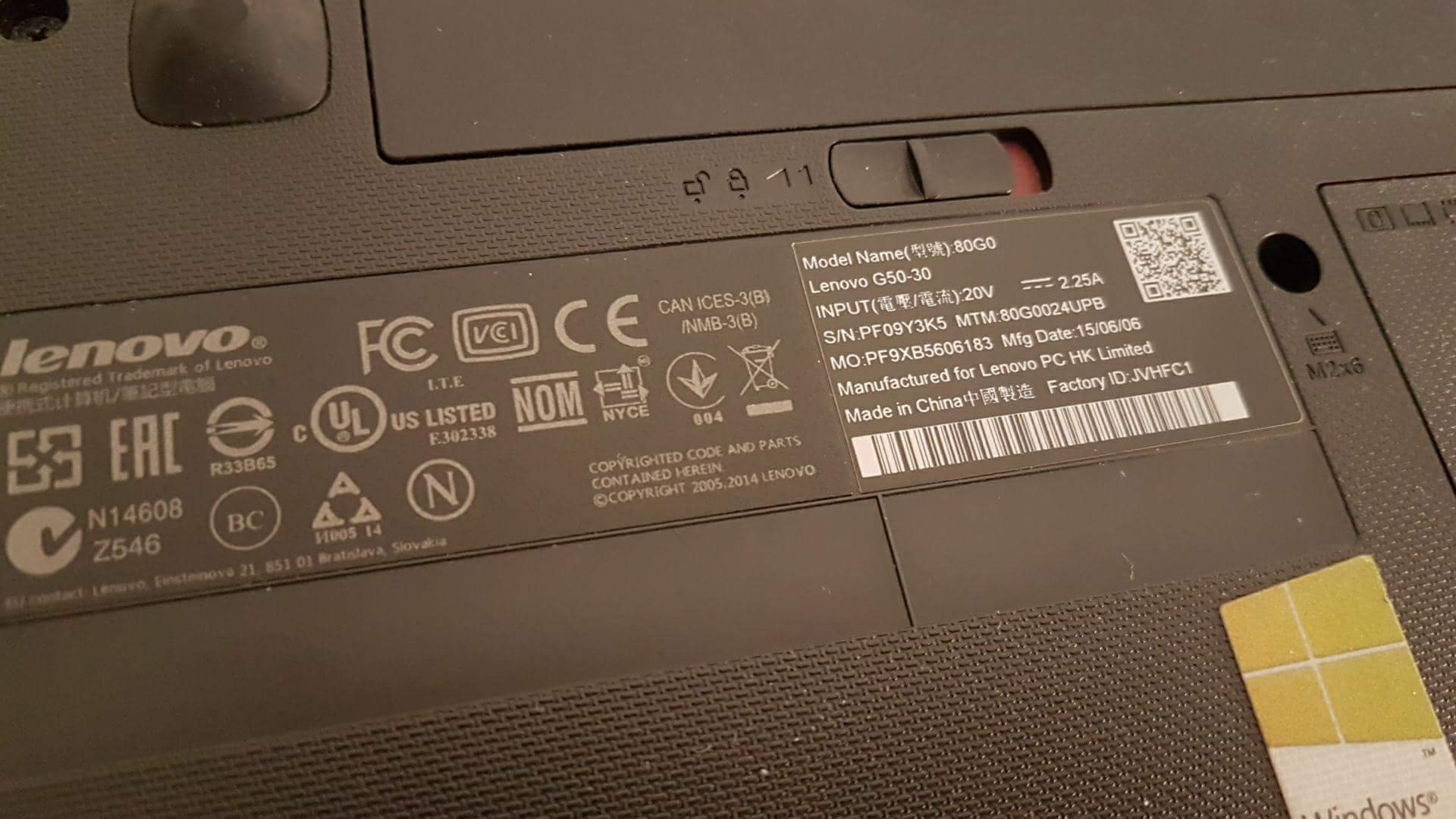 .
.
 ale dziękuje za wszystkie porady, udalo mi sie stworzyć plyte DVD z Ubuntu, ktora sie uruchamia online i są widoczne moje pliki w laptopie - moge je skopiowac na pendrive

